If you’ve ever plugged in your trusty Mini USB flash drive, only to see it show 0 bytes total and 0 bytes free—even though you swear you stuffed half your project files, family photos, or client invoices on it—you know the frustration. I’m the owner of a small tech supply shop that specializes in Mini USB drives, and I’ve fielded this exact question from customers almost every week since we launched 5 years ago. It’s one of the most common issues we troubleshoot for folks who come in panicking because their drive “broke” out of nowhere. The good news? 9 times out of 10, it’s not that the drive is dead or corrupted—most of these 0-byte glitches are fixable at home, no fancy tools or tech degree required. Let’s walk through what’s going on, why this happens, and step-by-step fixes that actually work. Mini USB Flash Drive

First, let’s get one thing straight: a 0-byte read doesn’t always mean your files are gone. I’ve had customers come in with drives that showed 0 bytes, only to find their photos were still there hiding in a corrupted file allocation table (FAT, for short)—that’s the “table of contents” the drive uses to find where your files live. When that table glitches, Windows or Mac can’t map the data, so it reports the drive as empty. Other times, it’s a loose connection, a driver bug, or a tiny firmware hiccup that’s easy to iron out. Rarely, it’s a dying drive—but that’s the exception, not the rule, especially for our high-grade Mini USB drives (we test every single one before it leaves our warehouse, so you know it’s built to last).
Let’s start with the simplest fixes first, because 70% of the time, this is all you need. The first thing to do is reseat the drive properly—this sounds stupidly obvious, but so many people yank it out of their laptop or desktop without checking, or plug it into a dusty USB port. Over time, dust builds up in the USB port pins, or the Mini USB connector on the drive gets a little bent, so it doesn’t make a solid connection. For this step, don’t just jab it back in. Unplug it gently, take a clean, dry microfiber cloth (the kind you use for glasses works great) and wipe the metal connector on the drive and the USB port on your device. If the port has a lot of dust, you can blow on it softly—never use compressed air, that can bend pins. Wait 10 seconds, then plug it in firmly, making sure it clicks into place. If you were using a USB hub, skip that next time—hubs can cause power fluctuations that mess with small drives like Mini USBs, especially if you’re using a low-power hub (like the ones that plug into your laptop’s side). If it shows up as fixed now? You were just dealing with a bad connection, no big deal.
If reseating doesn’t work, try plugging the drive into a different computer. I can’t tell you how many times a Windows update or a rogue Mac software glitch will make a drive show 0 bytes on one device, but work perfectly on another. Back when we first started, we had a customer come in crying because his Mini USB drive with his son’s birthday photos was showing 0 bytes on his work laptop—plugged it into his home desktop, and it popped right up. Software-specific glitches are way more common than people think, especially if you have a bunch of external drives connected and your device is mixing up storage assignments. If it works on another computer, the issue is with your original device’s settings, not the drive. If it still shows 0 bytes on every device you try? Okay, time to move to the next step.
Next up, let’s check for driver issues on Windows, since that’s where most of these glitches pop up. Macs are way better at handling external drives, but Windows can get messy with driver updates. Here’s how to fix that in 2 minutes: right-click the Start menu button (the little Windows icon in the bottom left) and select “Device Manager.” Scroll down until you see “Disk Drives” and click the little arrow next to it. You should see your Mini USB drive listed there—right-click it, and select “Uninstall device.” Don’t check the box that says “Delete the driver software for this device” (we don’t want to mess with your other drivers), just click uninstall. Now, unplug the drive, wait 10 seconds, and plug it back in. Windows will automatically reinstall the driver, and that often fixes the 0-byte bug. I’ve had this work for customers who installed a random third-party antivirus that messed up drive permissions, too—if you recently installed a new security tool, try disabling it temporarily and plugging the drive back in.
If none of that has worked, we’re getting into the more hands-on fixes, but stick with me—these are still super easy. The next step is to format the drive, but wait: formatting will erase everything on it, right? So we need to make sure your files are recoverable first. Here’s the thing: if the drive shows 0 bytes, your files might still be there, but the system just can’t see them. Before formatting, try a free data recovery tool—no need to pay for fancy software, Recuva is free for personal use, or TestDisk (it’s open-source, so no catch) works great for Mini USB drives. Run a quick scan on the drive, and if it pulls up your files, save them to your computer before you do anything else. If the scan comes up empty, that means the FAT table is so corrupted that the tools can’t pull anything back—but formatting is still safe to do, because it won’t mess with actual drive hardware, just that wonky table.
Formatting steps: On Windows, open File Explorer, right-click your Mini USB drive, select “Format.” Make sure the file system is set to FAT32 (this works for both Windows and Mac, and it’s the standard for small drives like our Mini USBs) — don’t pick NTFS, because Macs can’t read that without extra software. Click “Start,” wait 30 seconds, and boom—the drive should go back to showing its full capacity. On Mac, open Disk Utility (it’s in Applications > Utilities), find your Mini USB drive on the left, click “Erase,” name it, select “MS-DOS (FAT)” as the format, and click Erase. That’s it. I always tell customers this is the go-to fix for 0-byte Mini USB drives that aren’t physically damaged—we format a handful of returns every week because their customers thought the drive was broken, and most of them work perfectly after that.
Wait, but what if formatting doesn’t work? That’s usually when it’s a more specific corruption, not the FAT table. Another trick is using Command Prompt on Windows to fix the system errors on the drive. Here’s how to do that: open the Start menu, type “cmd,” right-click “Command Prompt,” and select “Run as administrator.” A black screen will pop up—type the following exactly: chkdsk X: /f (replace X with the letter assigned to your Mini USB drive—you can find that letter in File Explorer, next to the drive name). Press Enter, and let it run. It’ll scan for bad sectors and fix any file system errors. For a lot of customers, this is the magic step when formatting doesn’t work. I had a regular who used our 16GB Mini USB drive for his design projects, and it showed 0 bytes after a power surge when he left it plugged in overnight. Chkdsk fixed it in 2 minutes, and he’s been using it for another year since.
Now, let’s talk about when the 0-byte issue is something more serious—what I call “drive hardware glitches.” This is way less common, but it’s good to know how to spot it. If you plug the drive in, and it doesn’t show up in Device Manager at all, or it says “Unknown device” under USB controllers, that means the internal NAND flash memory on the drive might be failing. Signs of that: the drive feels warm when you plug it in (most Mini USB drives stay cool when working), or it makes a weird clicking or beeping sound (super rare, but we’ve seen it with drives that have been dropped or exposed to extreme temps). If that’s the case, the fixes above might not work—but before you write it off, you can try a quick firmware reset for the drive. A lot of budget drives don’t have this, but our Mini USB drives do, and it’s a simple process: unplug the drive, wait 30 seconds, plug it into a different USB port, and leave it plugged in for 5 minutes (don’t use it, just let it sit). Sometimes the firmware gets stuck in a weird state, and that fixes it.
Also, a quick note on what to avoid when you have a 0-byte Mini USB drive. Don’t keep trying to plug and unplug it over and over— that can damage the internal pins more. Don’t use “quick format” tools, because those can make corruption worse. And for the love of all things tech, don’t throw it in the trash if the fixes above work! We reuse perfectly good drives all the time, and most of the ones we get back with 0-byte issues are just fine after a quick format.
Now, a quick plug: at our tech supply shop, we specialize in high-quality Mini USB flash drives that are built to handle all the little glitches that come with daily use. We’ve had customers come to us after they tried all the fixes we mentioned and their drive still won’t work—most of the time, they just need a replacement, and we offer bulk and single-unit pricing for everyone, from small business owners who need drives for client swag to students who need a reliable drive for their notes and projects. If you’ve tried every step here and your Mini USB drive still shows 0 bytes, or you’re in the market for a new one that won’t give you this hassle down the line, hit us up to chat about your needs—we’re here to help, no salesy jargon, just straight answers.
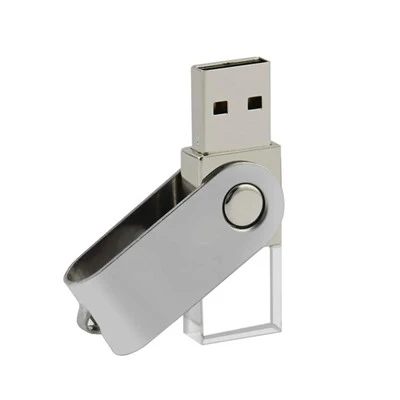
Let me wrap this up with a quick recap so you don’t have to scroll back: first, reseat the drive and clean the port. Second, test it on another computer. Third, uninstall and reinstall the drive driver on Windows. Fourth, run a data recovery scan then format the drive. Fifth, use chkdsk to fix file errors. If none of that works, it might be a hardware issue, so either reach out for help or invest in a new drive from someone who actually tests their products.
Custom USB Drives I’ve worked with Mini USB drives for 5 years, and I can tell you this: 9 out of 10 0-byte issues are totally solvable, no replacement needed. I’ve seen drives that were dropped, had coffee spilled on them, been left in a car in 90-degree weather, all come back to life with these simple steps. Don’t panic, don’t delete random files, and don’t stress—most of the time, your data is safe, and your drive is just being a little glitchy. If you do run into issues that these steps don’t fix, or you’re looking for a reliable Mini USB drive that’s built to last, feel free to connect with our team to talk through your requirements.
References
- Microsoft Support: Troubleshoot external drive issues on Windows, 2024
- TestDisk Official Documentation: Data recovery for flash drives, 2024
- USB-IF Organization: Mini USB connector best practices for durability, 2023
Shenzhen Tanshuo Technology Co., Ltd.
As one of the most professional mini USB flash drive manufacturers in China, we’re featured by high quality customized products. We warmly welcome you to buy cheap mini USB flash drive in stock here from our factory. If you have any enquiry about pricelist and free sample, please feel free to email us.
Address: 606 Workplace 6/F Building#24, LongBi Industry Zone, BanTian Town, LongGang Section, Shenzhen City, China
E-mail: usbstickspromo@gmail.com
WebSite: https://www.fondatop-usb.com/
